

How to use MetaTrader 4 (MT4) on Exness is a topic of interest to many new investors. Many people learn about this content when they first enter the Forex market.
MetaTrader 4 (MT4) is the most popular trading platform today. It is highly appreciated for its fast order matching speed and friendly interface. MT4 also integrates many powerful technical analysis tools, effectively supporting traders.
Tuy nhiên, không phải ai cũng biết cách tải, cài đặt và sử dụng MT4 trên máy tính một cách hiệu quả. Trong bài viết này, USDXAU.ORG sẽ hướng dẫn bạn chi tiết cách sử dụng MT4 trên máy tính Exness, giúp bạn dễ dàng mở lệnh, theo dõi biểu đồ và quản lý tài khoản giao dịch chuyên nghiệp.

What is MetaTrader 4 (MT4)? Overview of the MetaTrader 4 platform
MetaTrader 4 (MT4) is the world's most popular Forex and CFD trading platform, developed by MetaQuotes Software. MT4 allows traders to open, close and manage orders, analyze price charts, as well as automatically trade through Expert Advisors (EAs).
Currently, Exness MT4 is considered one of the top choices thanks to its stable performance, low cost and high flexibility for both beginners and professional traders.
Before proceeding with the installation of MT4, you need to log in to your Exness Personal Area to get your account and server information. Click here 👉 Log in to Exness for quick access and have your information ready!
How to download and install Exness MT4 on your computer
MT4 is a powerful and easy-to-use trading platform, compatible with both desktop and laptop computers. Here is a detailed MT4 user guide for your device.
MT4 Download Guide on Exness
👉 Download MT4 at Exness homepage:https://www.exness.com/metatrader-4/
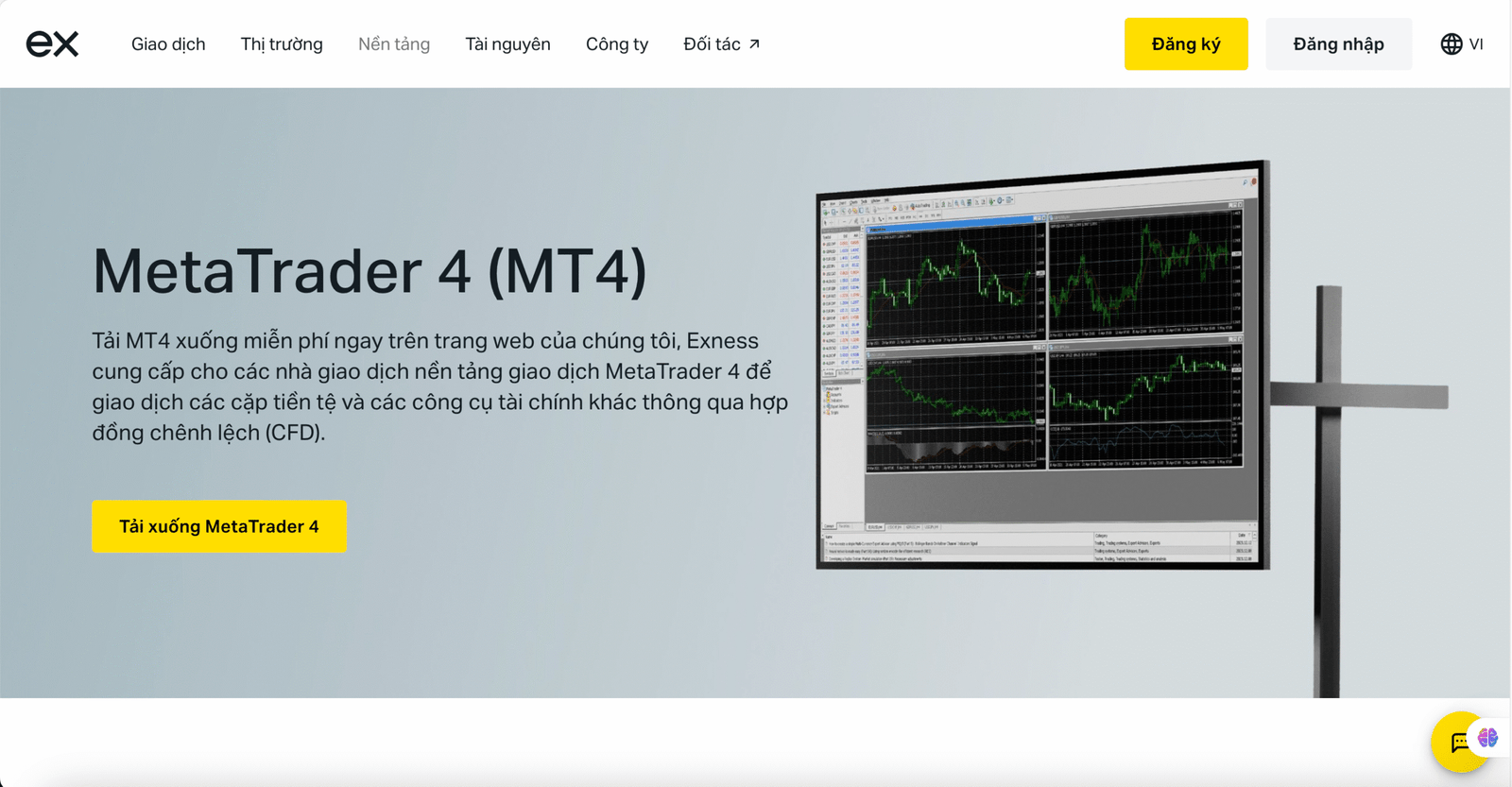
For Windows:
- Click Accept on the welcome message and close the test account creation prompt.
- Trên trang Đăng nhập vào tài khoản hiện tại (Login to an existing account), hãy tìm kiếm “Exness Technologies Ltd” trong thanh Tìm công ty môi giới (Find Broker).
- Khách hàng ở Kenya: Nhập “Exness (KE) Limited”.
- Chọn máy chủ giao dịch phù hợp, nhập số tài khoản và mật khẩu của bạn, sau đó nhấn vào Đăng nhập (Sign In).
For Mac OS:
- Follow the installation prompts.
- Tìm kiếm “Exness Technologies Ltd”, sau đó chọn máy chủ giao dịch phù hợp.
- Khách hàng ở Kenya: Nhập “Exness (KE) Limited”.
- Select Existing Trade Account. Enter your account number and password. Then click Finish to complete.
Your trading account will be displayed in the Accounts section.
MT4 Exness Login Guide
To log in, please:
- Click on File, then select Log in to Trade Account.
- Enter the trading account's Login, Password and Server information, then click Login.
- If the login is successful, MT4 will play a sound confirming the trading account connection.
🔎 If you cannot log in to MT4, please see the article “Exness login error and how to fix it” for details.
How to Use MetaTrader 4 Exness: Add, Remove and Manage Trading Instruments
Before you start trading, you should add your favorite trading instrument to the Market Watch window.
How to add
- Right-click on the Market Watch window.
- Select Symbols, and then choose from the displayed list.
- Click an instrument to add its icon to the Market Watch, then click Close.
How to delete
- Right-click on the instrument in the Market Watch window.
- Click Hide.
How to open an order
Here are a few different ways to open the New Order window:
- Click New Command on the toolbar.
- Press the F9 key on your keyboard.
- Right-click on the trading instrument in the Price List window, and then click New Order.
- Double-click on the trading instrument in the Price List window.
How to place an order:
- Set the Price and Expiry Date*.
- Loại khớp lệnh hiển thị trong mục Loại, tự nhận diện theo công cụ và tài khoản giao dịch.
- Click either Sell at Market or Buy at Market to place your order. Note that these buttons may vary by order type.
How to set up a pending order:
- Open the New Order window (F9).
- In the New Order window, select the symbol and trade size you want.
- Under Type, select Pending Order and select the pending order you want from the drop-down list.
- Thiết lập Giá (Price) và Ngày hết hạn* (Expiry Date).
- You can set Stop Loss (SL) and Take Profit (TP) levels.
- Click Set to set up a pending order.
Note: If the expiration date falls on a weekend, the order will automatically expire when the market closes (except for crypto instruments).
How to close an order
Orders can be closed in one of the following ways:
- Double-click the order you want to close in the Trade section (in the Terminal area), then click the Close By Market button.
- Nhấp chuột phải vào lệnh của bạn trong mục Giao dịch (Trade), rồi chọn Đóng lệnh (Close Order) và xác nhận thao tác. Với tính năng Giao dịch bằng một cú nhấp (One-Click Trading) đang hoạt động, lệnh sẽ đóng khi bạn chọn Đóng lệnh (Close Order).
- Click the X to the right of the order in the Trade section; this will close the order immediately when the One-Click Trading feature is active.
Order management on MT4
Here's how you can modify or delete an existing order from the Trade section:
- Right-click on the command in the Trade section (in the Terminal area).
- Click the Modify or Delete command.
- How to Edit: Edit the fields available for modification, including Price, Stop Loss, Take Profit, and Expiry Date. Click Edit when finished.
- How to delete: Click on the Delete option.
Tips for using MetaTrader 4 (MT4) effectively for new traders
- Use technical indicators like RSI, MACD, Bollinger Bands to analyze trends.
- Lưu mẫu biểu đồ (Template) để dùng lại nhanh.
- Use One-Click Trading for faster order execution.
- Follow economic news right in MT4 to avoid unexpected fluctuations.
You have mastered how to use MT4 on your computer. If you don't have an account yet, see 👉 Instructions for registering an Exness account to experience the professional MT4 platform today!