

How to use MetaTrader 5 (MT5) on Exness is a useful article for investors who are new to Forex trading. Understanding how to install, log in and use this platform will help you feel more confident when opening orders and managing your account. MetaTrader 5 is a comprehensive upgrade of MT4, featuring fast order execution speed, a modern interface and many powerful technical analysis tools.
In this article, USDXAU.ORG will give detailed instructions on how to use MT5 on Exness PC to help you trade more easily and effectively.

What is MetaTrader 5? Overview of the MT5 platform
MetaTrader 5 (MT5) is a multi-purpose financial trading platform developed by MetaQuotes, allowing trading on Forex, gold, stocks, indices and cryptocurrencies. It is an upgraded version of MT4, with faster processing speed, more technical analysis tools and more optimized order management features.
MetaTrader 5 (MT5) has a friendly, easy-to-use interface and advanced charts. MT5 supports 21 timeframes and more than 80 technical analysis indicators. Users can use trading robots (Expert Advisors) to automate trading. The platform also allows automated strategy testing and live financial news. With these comprehensive features, MT5 is the ideal choice for every investor.
Before proceeding with the installation of MT5, you need to log in to your Exness Personal Area to get your account and server information. Click here 👉 Log in to Exness for quick access and have your information ready!
How to download and install MT5 Exness on your computer
In this section, we will go into detail on how to use MetaTrader 5 on Exness step by step, from downloading, installing to logging in and basic trading operations.
Instructions for Downloading MetaTrader 5 Exness
👉 Download MT5 at Exness homepage:https://www.exness.com/metatrader-5/
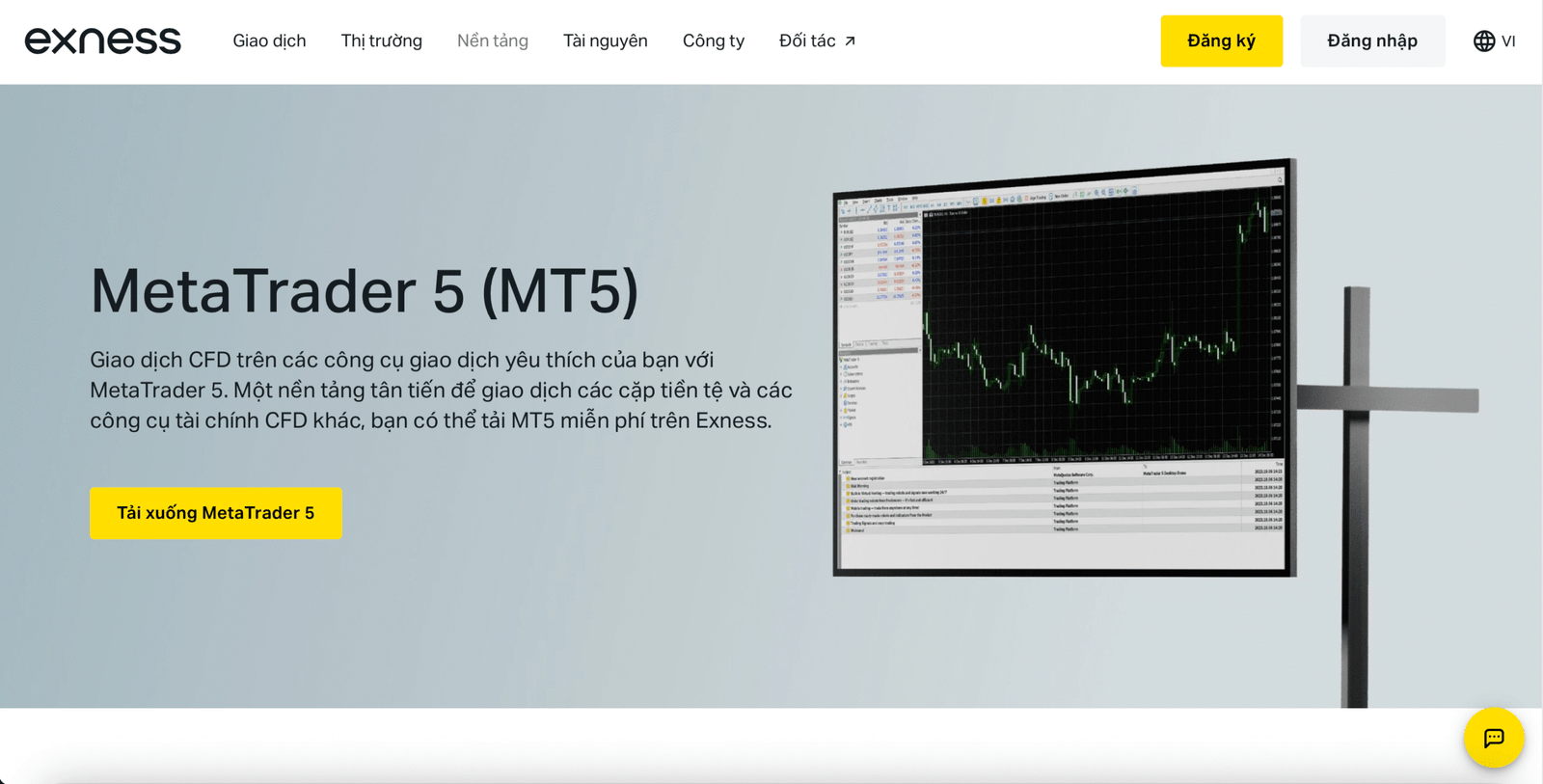
For Windows/Mac OS:
- Follow the instructions to complete the installation process.
- You can edit the MT5 installation location to your desired location by clicking on Settings or simply click Next if you agree to the End User License Agreement and continue.
- Nhấp vào Hoàn thành (Finish) và thiết bị sẽ tự động mở MT5.
- When logging in for the first time, click Cancel to close the “Open an account” window.
MT5 Exness Login Guide
To log in, please:
- Click on File, then select Login to Trade Account.
- Enter the trading account's Login, Password and Server information, then click Login.
- If you can't find your server, go to File and select Open Account. Search for Exness, then select Exness Technologies Ltd. from the list. Select your server from the list, then tap Finish.
- If successful, you will hear a chime confirming that you are now logged into MT5 with your trading account.
If using the default MT5 account created during registration, the password will be the same as the Personal Area password.
How to switch accounts:
- Click on File, then select Login to Trade Account while logged in to the trading account.
- Log in with the details of another trading account and click OK. Check the Save account information box for faster switching.
- During login, saved accounts will appear in the drop-down menu.
How to Use MetaTrader 5 (MT5) Exness: Add, Remove and Manage Trading Instruments
Quản lý các công cụ giao dịch mà bạn yêu thích trong cửa sổ Bảng giá (Market Watch).
How to add
- Right-click on the Market Watch window.
- Select Symbols, and then choose from the displayed list.
- Double-click an instrument to add it to the Market Watch, then click OK.
How to delete
- Right-click on the instrument in the Market Watch window.
- Click Hide.
Open order
Here are a few ways to open the New Order window:
- Click New Command on the toolbar.
- Press the F9 key on your keyboard.
- Right-click on the trading instrument in the Price List window, and then click New Order.
- Double-click on the trading instrument in the Price List window.
How to place an order:
- In the New Order window, select the symbol, trade size, Stop Loss and Take Profit levels you want.
- The order execution type can be found in the Type section and is automatically recognized according to the selected instrument and trading account type.
- Click either Sell at Market or Buy at Market to place your order. Note that these buttons may vary by order type.
How to set up a pending order:
- Open the New Order window (F9).
- In the New Order window, select the symbol and trade size you want.
- Under Type, select Pending Order and select the pending order you want from the drop-down list.
- Set your Price, then optionally set your Expiry date*, Stop Loss and Take Profit levels.
- Click Set to set up a pending order.
*Expiration dates falling on a weekend will cause the order to expire at the market close of the current weekend (excluding crypto instruments).
Close order
Orders can be closed in one of the following ways:
- Double-click the order you want to close in the Trade section (in the Terminal area), then click the Close By Market button.
- Click the X to the right of the order in the Trade section; this will close the order immediately when the One-Click Trading feature is active.
- Click the X to the right of the order in the Trade section; this will close the order immediately when the One-Click Trading feature is active.
Order management
Here's how you can modify or delete an existing order from the Trade section:
- Right-click on the command in the Trade section (in the Terminal area).
- Click the Modify or Delete command.
- How to Modify: Edit the fields available for modification, including Price,Stop Loss,Take Profit, and Expiry date. Click Edit when finished.
- How to delete: click on the Delete option.
Tips for using MetaTrader 5 effectively for new traders
Once you have mastered the MetaTrader 5 user guide, you can apply the tips below to trade more effectively and professionally.
- Use technical indicators like RSI, MACD, Bollinger Bands to determine the trend.
- Save chart templates to quickly apply them to multiple currency pairs.
- Use One-Click Trading to enter orders quickly, reducing delays.
- Set Stop Loss / Take Profit directly on the chart to manage risk.
- Follow economic news in MT5 to avoid unexpected fluctuations.
- Practice on a Demo account before trading for real to improve your skills.
You have mastered how to use MT5 on your computer. If you don't have an account yet, check out 👉 Instructions for registering an Exness account to experience the professional MT5 platform today!